Introduction
Last time, we deployed Security Onion which will be our SIEM of choice for this project. Now we need a SOAR (Security Orchestration Automation and Response) solution. Which brings us to Shuffle, an open-source SOAR platform we can use to build playbooks containing predefined actions for responding to suspicious activity. Before we get going, I’m deploying Shuffle on a recently created Ubuntu server VM using Docker Compose. Versions listed below.
- Ubuntu Server 26.04
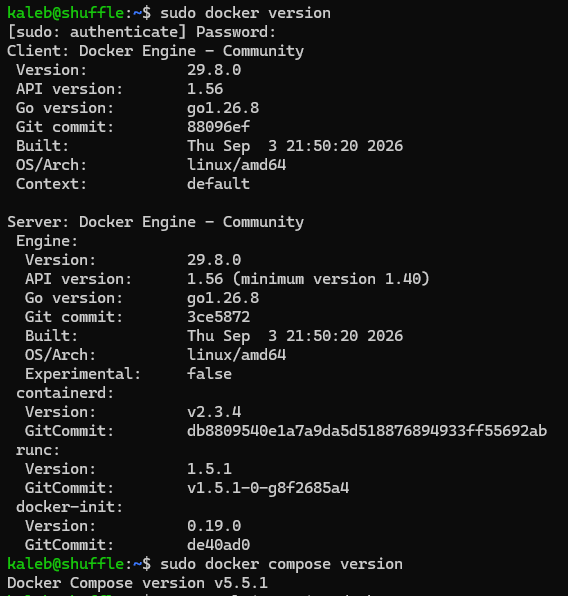
Deploying Shuffle with Docker Compose
Okey dokey let’s get Shuffle up and running.
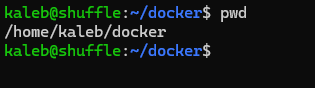 As I said, I’m on a new Ubuntu server VM running on Proxmox, so I created this
 docker directory where I’ll be keeping all the relevant files. This VM has 4 cores and 8GB of RAM, which is above the minimum per the Shuffle Documentation.
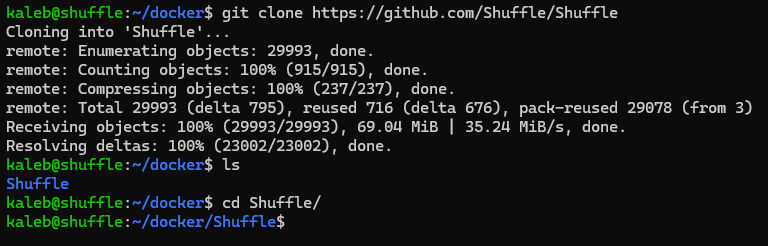 Here I clone the Shuffle repository with Git and change into the resulting directory. What’s inside?
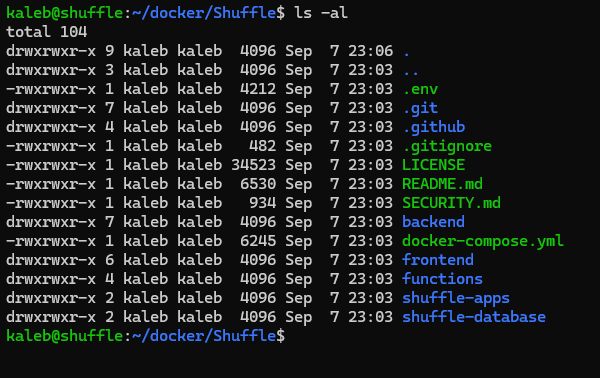 Alright, awesome. Now before we start making some changes to the .env file, we need to run a quick command.
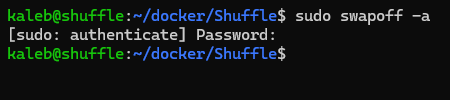 Shuffle explicitly says to disable swap or it’s going to get cranky. Now keep in mind swapoff only disables swap for this boot, so if your system reboots swap will be re-enabled. Now we should probably just comment out the swap section from fstab, we’ll do that later. Okay, now it’s time to modify a bunch of entries in the .env file. With your text editor of choice, we’re going to modify the following variables in .env.
- SHUFFLE_ENCRYPTION_MODIFIER. Set this to a random value, preferably the output from
openssl rand -hex 32 - SHUFFLE_OPENSEARCH_PASSWORD and OPENSEARCH_INITIAL_ADMIN_PASSWORD. Replace both of these with the same password. Make sure to adhere to the complexity requirements unless you want stuff to break.
- SSO_REDIRECT_URL. Change this from localhost to your device’s IP for remote web console access.
- TZ. Change this to your timezone.
After that, make sure to run
chmod 600 .envin order to protect the .env file from being read or written to by other users. Okay with all of that out of the way, let’s up all the containers!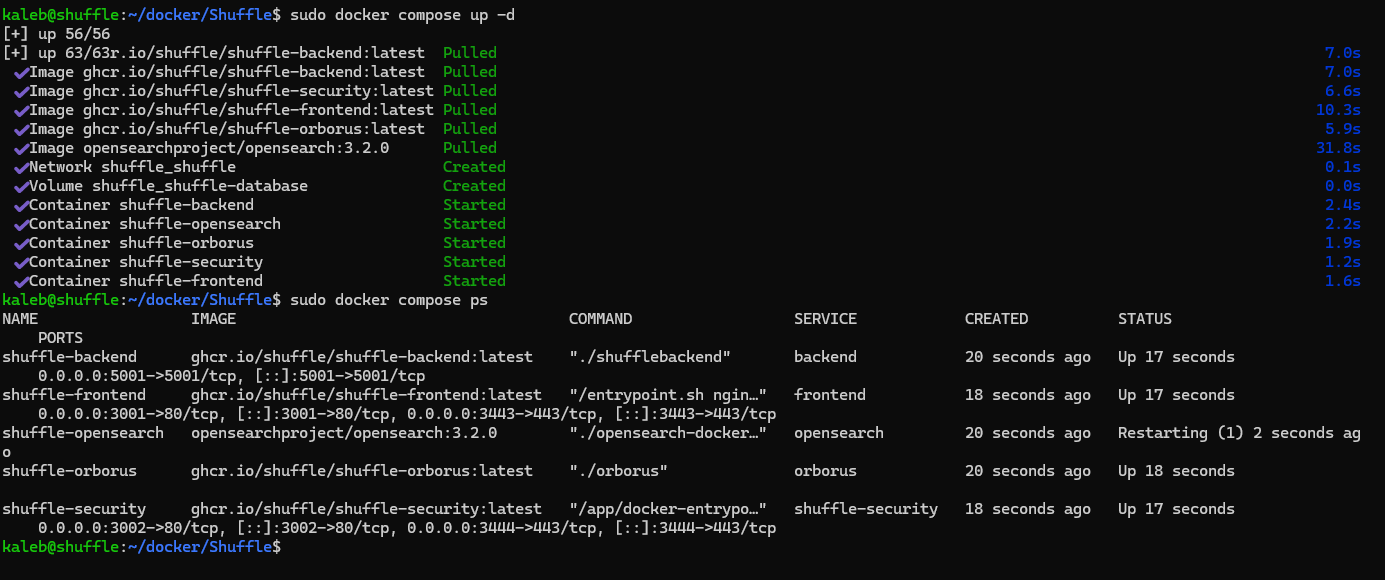 All the containers appear to start successfully! Well actually, that’s what I thought. You can see the OpenSearch container is restarting continuously and that isn’t normal. You know how I mentioned needing to adhere to password complexity requirements in the .env file? Yeahhh, well, I didn’t. So in order to fix it I first ran:
sudo docker compose logs --no-color --tail=100 opensearch
To check the logs, which kindly informed me of the authentication issue. After fixing both passwords in the .env file I had to recreate the backend container and then restart the frontend container.
sudo docker compose up -d --force-recreate opensearch backend

sudo docker compose restart frontend
After I did all this everything worked fine.
Okay, now that that’s all settled, let’s see if we can access the console from localhost.
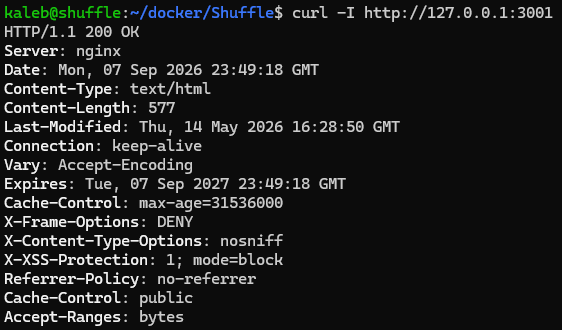 Perfect, 200 OK back, that’s what you want to see. Alrighty, let’s see if we can access it from a remote browser…
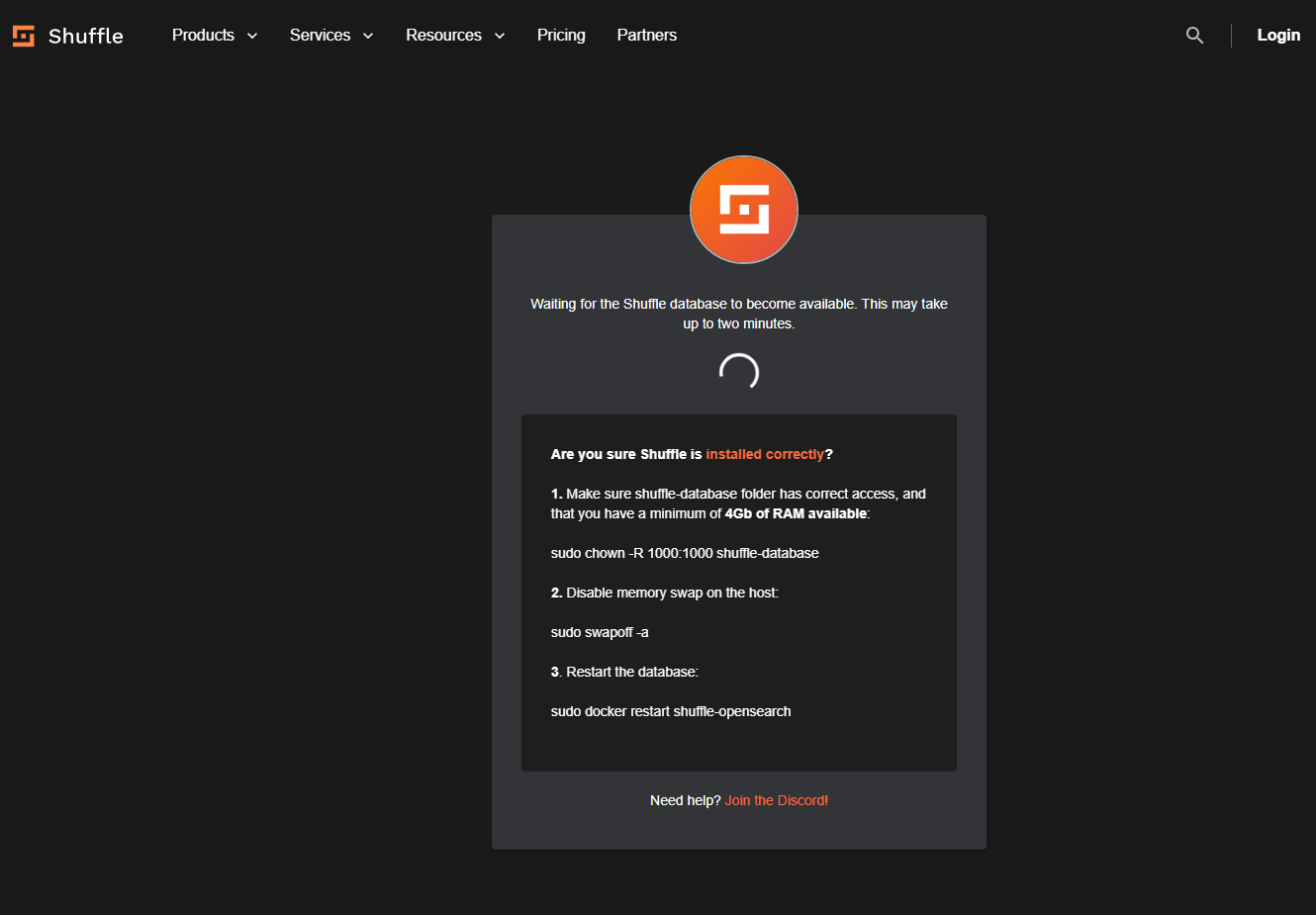 Perfect. My Shuffle database is still getting spun up due to my earlier password mishap, so I’ll come back in a second once it’s done.
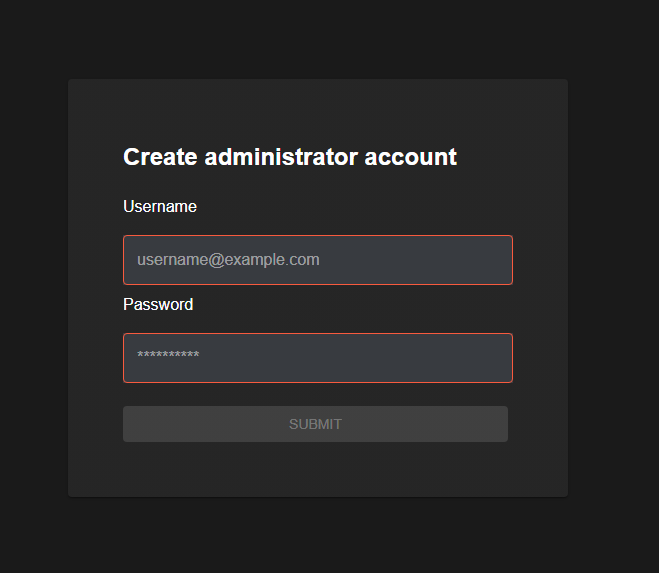 And here we are. Go ahead and enter your desired credentials. After you do you’ll be redirected to log in with your credentials and which once you do…
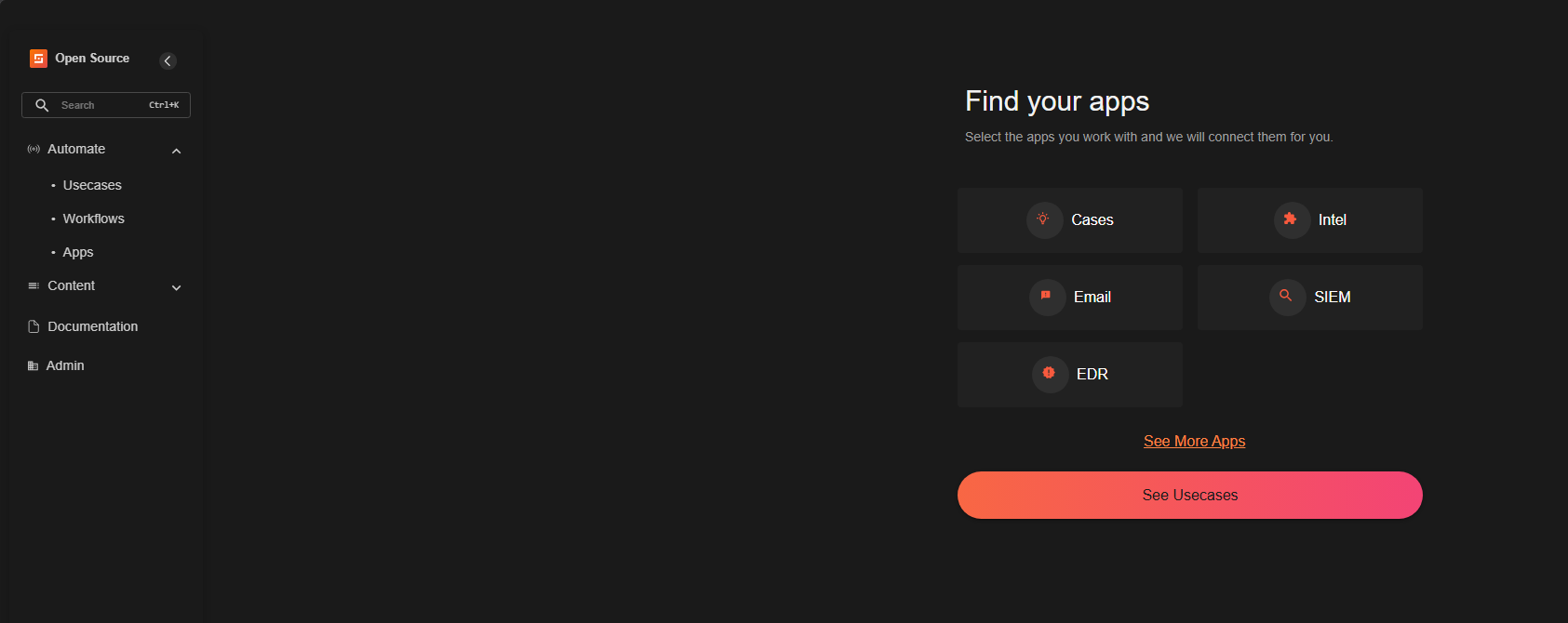 Bam! Very good, everything looking great so far. Now, before we start playing with Shuffle, we have a few housekeeping things to do. First things first is only allowing the LAN access to the web console and not all the backend services running. To do this we’re actually going to create a docker compose override file. So, from your Shuffle Docker directory we’re going to create a new file.
 And paste the following content in there.
services:
  frontend:
    ports: !override
      - "192.168.50.52:3001:80"
      - "127.0.0.1:3443:443"
  backend:
    ports: !override
      - "127.0.0.1:5001:5001"
  opensearch:
    ports: !override
      - "127.0.0.1:9200:9200"
  shuffle-security:
    ports: !override
      - "127.0.0.1:3002:80"
      - "127.0.0.1:3444:443"
So what this does is only expose the web console via port 3001 to the LAN. All the other services remain reachable from localhost, but not the local network. All of our backend services and APIs will still function normally. Also it’s important to note the override tag is for Docker Compose 2.24.4 or newer. Which you should be running, but if not, this won’t work. Now, for these changes to take effect, all we need to do is reup the containers like so:
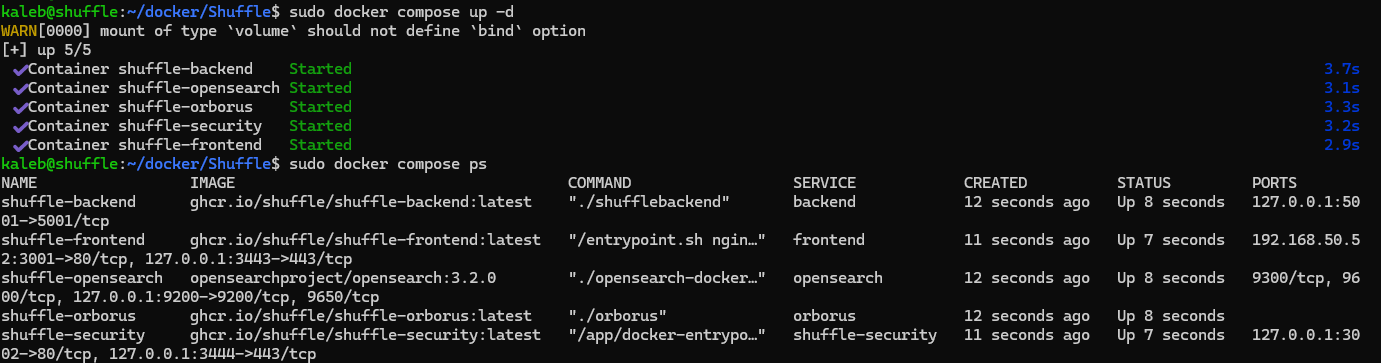 So we recreate all the containers, and the
 docker compose ps command shows that only the frontend is accessible via the device’s IP. All the other services are only listening on localhost so that’s that done.
Next on the agenda is fixing the fstab file so we can disable swap persistently. First things first, make a backup of the fstab file. Messing with this file can be a quick way to wreck your system so you want to be diligent when messing with it.
 Okay, copy created. Let’s go in and edit the fstab file.
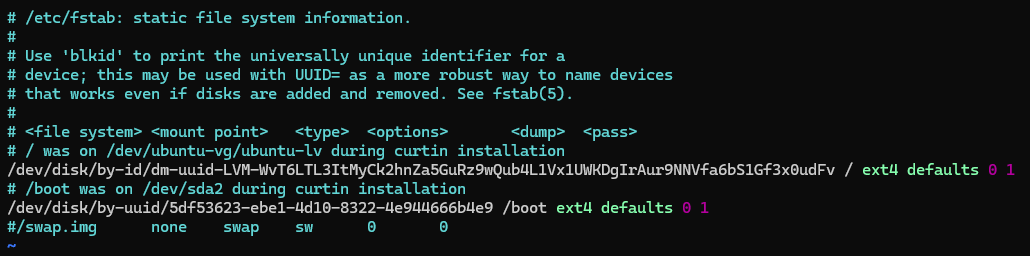 Alright so here I just commented out the line with the swap information (the last line). Now let’s quick verify this doesn’t break our system.
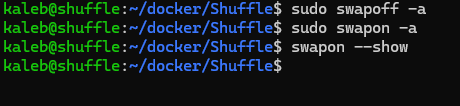 So we
So we swapoff and swapon just to reset everything and then swapon --show returns nothing, which is what we want to see. That’s all the housekeeping we needed to do for now. I am going to set up HTTPS later because it’s never great using HTTP, but that should also be something on the to do soon list. Alright, let’s go look around the Shuffle web console a little more.
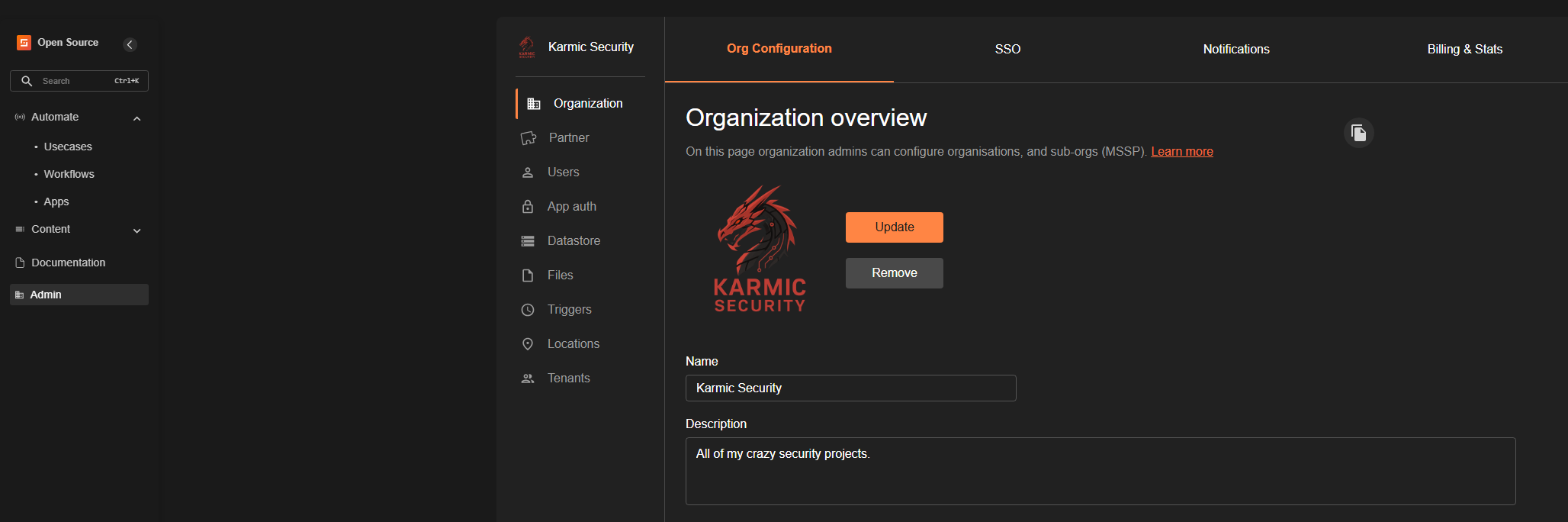 In the Admin section, I updated the logo, the name of my organization and give it a little description. Customize yours however you see fit.
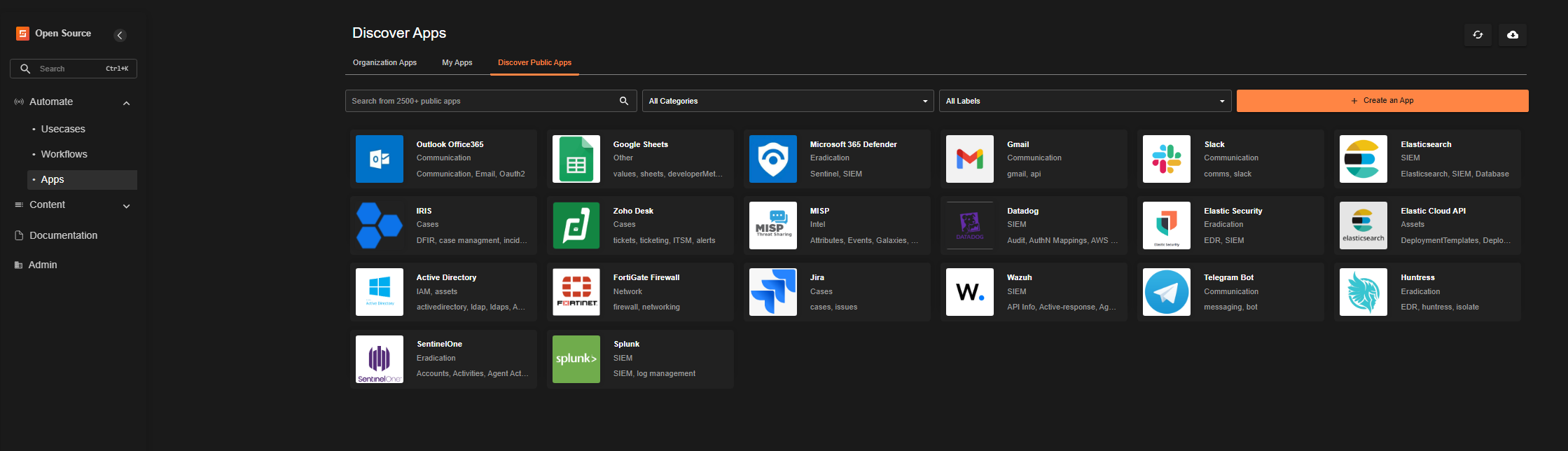 Now under Automate -> Apps -> Discover Public Apps, we see just a few of the applications we can integrate Shuffle with. Several common SIEM, ticketing, messaging, and security platforms. It can interface with Jira for automatic ticket creation, send you messages, really just a ton of cool stuff.